
Showing posts with label technology. Show all posts
Showing posts with label technology. Show all posts
Tuesday, September 3, 2019
Gimkit: You and Your Students Will Love It
Does your class love Kahoot? Now is the time to learn about Gimkit! Gimkit was definitely a new favorite last year, but I found there was a learning curve to figure out how I liked to use Gimkit. Here are some of the reasons why I really love Gimkit.

Friday, March 15, 2019
2 Resources That Will Make You Love Coding in Math Class
If you've been afraid to give coding a chance in your math classroom, I'm here to tell you about a couple of my favorite activities that will convince you that it is time to give it a try. They are easy to implement (even if you have NO experience), and you'll be excited about the math that is involved!

My journey with coding began a few summers ago. On a whim, I decided to try the "Summer of Code" on Khan Academy. I had always heard that math skills were needed for computer fields, but I really didn't know what kind of math was needed for computer programming. That summer I spent quite a bit of time completing the Beginners JavaScript course on Khan Academy, and I loved it! I'm still no expert, but after that summer I started a Coding Club at my school. It turns out there IS tons of math involved in coding....and lots of it even relates to what is taught in middle school.
You may not be ready to take on an entire JavaScript course, but there are lots of great resources out there to introduce kids to coding. In this post, I want to highlight my two favorite coding options. They are both great for a beginner skill level yet can challenge those with more experience. As a bonus, both resources do a great job of showing some of the connection between math and coding.

My journey with coding began a few summers ago. On a whim, I decided to try the "Summer of Code" on Khan Academy. I had always heard that math skills were needed for computer fields, but I really didn't know what kind of math was needed for computer programming. That summer I spent quite a bit of time completing the Beginners JavaScript course on Khan Academy, and I loved it! I'm still no expert, but after that summer I started a Coding Club at my school. It turns out there IS tons of math involved in coding....and lots of it even relates to what is taught in middle school.
You may not be ready to take on an entire JavaScript course, but there are lots of great resources out there to introduce kids to coding. In this post, I want to highlight my two favorite coding options. They are both great for a beginner skill level yet can challenge those with more experience. As a bonus, both resources do a great job of showing some of the connection between math and coding.
Code.org has lots of great resources that are perfect for people with no coding experience...both kids and adults. If you don't have any coding experience, the Hour of Code activities from Code.org are a great place to start. These activities are user-friendly and high interest. Code.org has a wide variety of quick coding activities to choose from, and they have all kinds of themes that are fun for kids.
My favorite is their Frozen themed Hour of Code activity. It has tons of math involved in the coding and it's so fun! This series of 20 puzzles starts out with some relatively simple puzzles, creating a series of lines that turn into a square. The challenges get more and more complex as you begin to write code to form a series of squares that rotate to form a pattern. This is a great activity if you are studying angles, and your artistic kids will love it too! I had my 7th graders try this as enrichment as part of our Shapes and Designs unit (focusing on interior and exterior angles, angle sums of polygons) and it kept them involved and challenged! These activities use blocks that you drag and drop in place...easy peasy!
My other favorite resource for a beginning coding activity is Khan Academy's beginner's Hour of Code activity. I love these Khan Academy resources. The teaching videos are easy to understand and interactive. While the Hour of Code activities from Code.org use drag and drop blocks, Khan Academy actually has students type in the code. I've had students tell me how "smart" they felt when they were typing in their lines of code. This set of JavaScript challenges will give your students a taste of coding as well as some of the math that is used in coding as students create simple drawings using code. Students really get a feel for how geometric figures are used in coding, as well as how it relates to the coordinate plane. If you like this Hour of Code activity, the full Intro to JavaScript course on Khan Academy is great as well (although probably not something you will have time to tackle in math class)!
If you don't have any experience with coding, now is the time to give it a try! These two activities may be just what you need to convince you that there may just be a place for coding in your math classroom. Leave a comment below with your favorite coding resource.
My favorite is their Frozen themed Hour of Code activity. It has tons of math involved in the coding and it's so fun! This series of 20 puzzles starts out with some relatively simple puzzles, creating a series of lines that turn into a square. The challenges get more and more complex as you begin to write code to form a series of squares that rotate to form a pattern. This is a great activity if you are studying angles, and your artistic kids will love it too! I had my 7th graders try this as enrichment as part of our Shapes and Designs unit (focusing on interior and exterior angles, angle sums of polygons) and it kept them involved and challenged! These activities use blocks that you drag and drop in place...easy peasy!
My other favorite resource for a beginning coding activity is Khan Academy's beginner's Hour of Code activity. I love these Khan Academy resources. The teaching videos are easy to understand and interactive. While the Hour of Code activities from Code.org use drag and drop blocks, Khan Academy actually has students type in the code. I've had students tell me how "smart" they felt when they were typing in their lines of code. This set of JavaScript challenges will give your students a taste of coding as well as some of the math that is used in coding as students create simple drawings using code. Students really get a feel for how geometric figures are used in coding, as well as how it relates to the coordinate plane. If you like this Hour of Code activity, the full Intro to JavaScript course on Khan Academy is great as well (although probably not something you will have time to tackle in math class)!

If you don't have any experience with coding, now is the time to give it a try! These two activities may be just what you need to convince you that there may just be a place for coding in your math classroom. Leave a comment below with your favorite coding resource.
Thursday, January 3, 2019
The Most Awesome Linear Regression Project Your Class Will Love
Does your class love Kahoot as much as my class does? Because they REALLY love Kahoot. During our unit on linear equations, I decided to have my class use linear regression to try to figure out the Kahoot algorithm for assigning points as our final project.
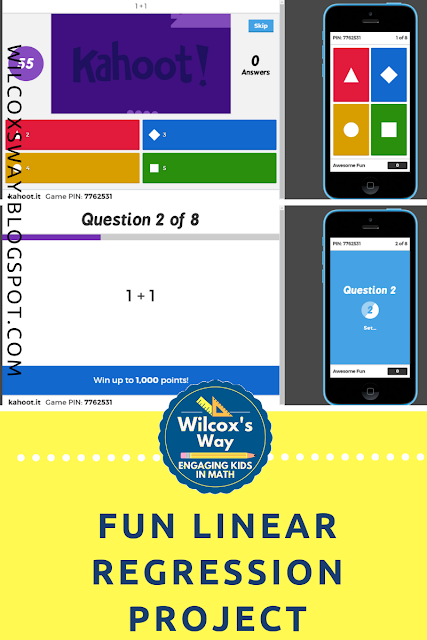
As our discussions of Kahoot scoring began, it was clear to everyone that the two variables that impact your score are time to answer and answer streaks. Trying to figure out how both of these variables affected your score was the foundation of our project.
The first thing we had to do was find a way to collect data about these variables. My teacher's brain went into overdrive trying to figure out exactly how we could collect the data so that my students would have data to analyze. However, rather than just organizing the data collection myself, we started the project by having a class discussion about how to collect meaningful data relating how time impacts your score in Kahoot. I felt like having students think through the process of how to collect meaningful, useful data was very important. I was so excited that the plan the kids came up with was basically the same thing I had planned to do.

Here was the plan: Each student would be assigned a specific time at which they were supposed to answer. Students would answer at the specified time and record how many points they received on that particular question (rather than their overall score). The class decided that after each correct answer, you had to miss the next question so that no one had an answer streak that would impact their score. We played through the Kahoot a few times with different time limits on the questions. Throughout the data collection process, we used the same Kahoot. It was a 10 question Kahoot in which every question was 1 + 1, and the right answer was always in the same place.
Next, we collected data about answer streaks. This time, the entire class answered at the same time but each student had a different amount of questions they were supposed to get correct. Once I had collected all of the time and answer streak data, I transferred it over to Google Sheets so that I could easily share it with students. Now we were ready to get to work on our linear regression project.
The project had several parts for students to complete:
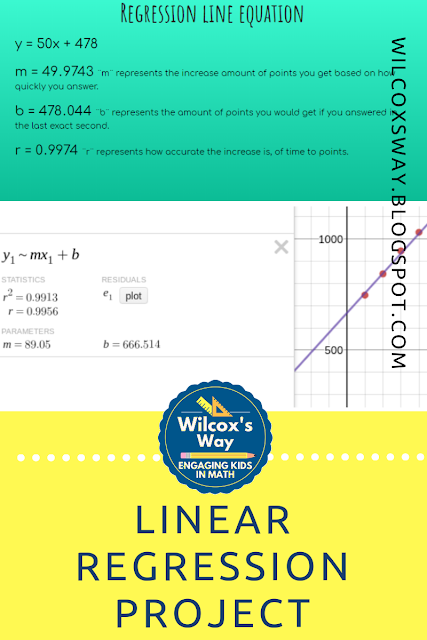
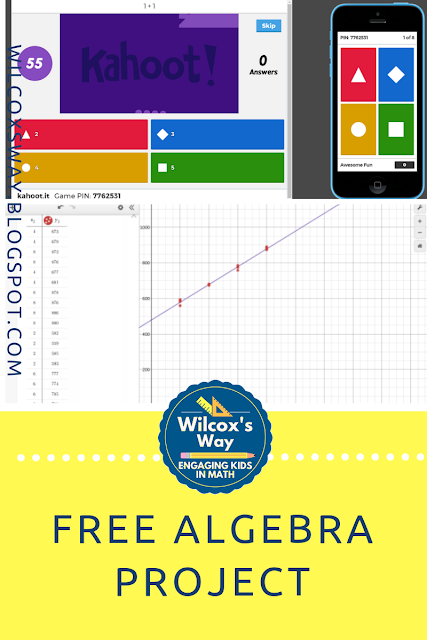

As our discussions of Kahoot scoring began, it was clear to everyone that the two variables that impact your score are time to answer and answer streaks. Trying to figure out how both of these variables affected your score was the foundation of our project.
The first thing we had to do was find a way to collect data about these variables. My teacher's brain went into overdrive trying to figure out exactly how we could collect the data so that my students would have data to analyze. However, rather than just organizing the data collection myself, we started the project by having a class discussion about how to collect meaningful data relating how time impacts your score in Kahoot. I felt like having students think through the process of how to collect meaningful, useful data was very important. I was so excited that the plan the kids came up with was basically the same thing I had planned to do.

Here was the plan: Each student would be assigned a specific time at which they were supposed to answer. Students would answer at the specified time and record how many points they received on that particular question (rather than their overall score). The class decided that after each correct answer, you had to miss the next question so that no one had an answer streak that would impact their score. We played through the Kahoot a few times with different time limits on the questions. Throughout the data collection process, we used the same Kahoot. It was a 10 question Kahoot in which every question was 1 + 1, and the right answer was always in the same place.
Next, we collected data about answer streaks. This time, the entire class answered at the same time but each student had a different amount of questions they were supposed to get correct. Once I had collected all of the time and answer streak data, I transferred it over to Google Sheets so that I could easily share it with students. Now we were ready to get to work on our linear regression project.
The project had several parts for students to complete:
- Data table and graph with at least 8 points relating time and score
- Linear regression equation relating time and score. Students had to explain the m and b value within the context of a Kahoot game, as well as explain what the r value meant
- Data table and graph with at least 6 points relating answer streak and score
- Linear regression equation relating streak and score. Students again had to explain the m and b values within the context of a Kahoot game and explain the r value. In addition, students had to explain any limits to the domain (because the streak bonus eventually maxes out)
- A predicted score on a fake Kahoot game compared to the actual score--This was my favorite part of the project. Students had to use their equations to predict their score on an 8 question Kahoot. They had to specify when they would answer and if they would get it right or wrong. Then we actually played the Kahoot so they could see how well the equations worked. It was a lot of fun to hear, "My prediction was only 5 points off!" and the rest of their excitement!
- A letter explaining what the student liked about the Kahoot scoring algorithm or a suggestion to change it for the better

Overall, I really liked this project much better than using fake linear regression data from our textbook. If I had to do it over again, I would probably only focus the project on the time aspect and not worry about answer streaks. Having two sets of data definitely complicated things. Overall, this was a fun project for my linear equations unit.

If you'd like a copy of this project, click here to join my email list and you'll get access to this project.
Sunday, September 16, 2018
Why Desmos Is My Favorite Technology Tool
Earlier this year, I started writing about some of my favorite technology tools, and I've even written about Desmos as one of those tools. But I'm here today to tell you even more about how much I love Desmos! Previously I wrote about how much I love the teaching activities part of Desmos, but my love of Desmos started with the graphing calculator part of Desmos. Here are a few of the features that I love on the graphing calculator side of Desmos.
1. Linear regression
I can't even begin to tell you how much easier it is to use Desmos than a regular graphing calculator. I teach one section of Integrated Math 1, and I always used to completely DREAD the lessons on linear regression. You know, like, give me a stomachache and make me not want to get out of bed that morning kind of dread. I would spend forever the day before making sure that every graphing calculator was working and had all the right settings....and it never mattered. I would still spend the entire hour running around, fixing settings and putting aside the calculators that I couldn't figure out what was wrong.
But not with Desmos. With Desmos it's soooooo easy! No settings to worry about, much easier to enter data. It's just EASY! Plus, they have a super easy tutorial. You just need to click on the question mark in the upper right-hand corner, and the tour to show you how to do regression is right there.

2. Create tables and graphs I can screenshot to use in other things
When I'm making a test or activity for class, I often find myself using Desmos and taking a screenshot. Easy peasy!
3. Label axes and zoom in and out on your graph
This is kind of a subpoint from above, but I have recently discovered that you can label the axes on your Desmos graph. Plus you can easily zoom in or out depending on the view you want to see of your graph. Makes it even better!
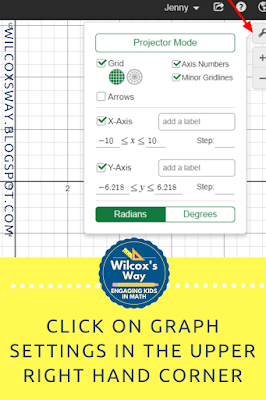
4. Export and share your graphs
This is also useful in addition to taking a screenshot. I find that the lines are a little bit darker than a screenshot, so sometimes I prefer this method.
In addition, you can also share a graph this way. For example, if you had created a graph that you already set up some of the labels or axes for your students, you could share it with them.

5. You can add photos to the background of your graph.
This is a great way to incorporate real-life situations and help students connect them to the real world.

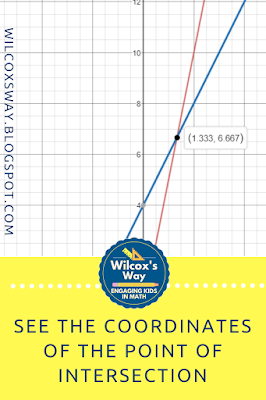
6. Students can easily graph systems of equations and see the point of intersection with accuracy to the nearest tenth.
Last year, I was teaching a lesson from one of my favorite units, Moving Straight Ahead. This is a unit about linear relationships, and we were working on the Henri and Emile problem. This is a problem about two brothers who are racing. They have different speeds, and the older brother gives the younger brother a head start. Students are supposed to decide how long the race will be so that the younger brother wins a close race.
Most of my students solve this using a table or guess and check. I was so excited to watch one group of students decide to use Desmos to solve the problem. They graphed the equation of each brother and could clearly see the point of intersection (where the brothers are tied). I thought it was absolutely amazing that students saw the technology of Desmos as a tool to help solve the problem, and understood how to use it and how to interpret the answer. The rest of the class was so impressed with this solution....and wished they had thought to use it!
7. Add sliders to let students play around with concepts of slope and y-intercept.
This is such an easy way for students to play around with what happens to your line as you change elements of the equation, without having to graph everything by hand. It helps students to see the big picture and analyze patterns.

If you haven't yet, it's time to give Desmos a try! Leave a comment telling me your favorite feature of Desmos!
1. Linear regression
I can't even begin to tell you how much easier it is to use Desmos than a regular graphing calculator. I teach one section of Integrated Math 1, and I always used to completely DREAD the lessons on linear regression. You know, like, give me a stomachache and make me not want to get out of bed that morning kind of dread. I would spend forever the day before making sure that every graphing calculator was working and had all the right settings....and it never mattered. I would still spend the entire hour running around, fixing settings and putting aside the calculators that I couldn't figure out what was wrong.
But not with Desmos. With Desmos it's soooooo easy! No settings to worry about, much easier to enter data. It's just EASY! Plus, they have a super easy tutorial. You just need to click on the question mark in the upper right-hand corner, and the tour to show you how to do regression is right there.

2. Create tables and graphs I can screenshot to use in other things
When I'm making a test or activity for class, I often find myself using Desmos and taking a screenshot. Easy peasy!
3. Label axes and zoom in and out on your graph
This is kind of a subpoint from above, but I have recently discovered that you can label the axes on your Desmos graph. Plus you can easily zoom in or out depending on the view you want to see of your graph. Makes it even better!

4. Export and share your graphs
This is also useful in addition to taking a screenshot. I find that the lines are a little bit darker than a screenshot, so sometimes I prefer this method.
In addition, you can also share a graph this way. For example, if you had created a graph that you already set up some of the labels or axes for your students, you could share it with them.

5. You can add photos to the background of your graph.
This is a great way to incorporate real-life situations and help students connect them to the real world.

6. Students can easily graph systems of equations and see the point of intersection with accuracy to the nearest tenth.
Last year, I was teaching a lesson from one of my favorite units, Moving Straight Ahead. This is a unit about linear relationships, and we were working on the Henri and Emile problem. This is a problem about two brothers who are racing. They have different speeds, and the older brother gives the younger brother a head start. Students are supposed to decide how long the race will be so that the younger brother wins a close race.
Most of my students solve this using a table or guess and check. I was so excited to watch one group of students decide to use Desmos to solve the problem. They graphed the equation of each brother and could clearly see the point of intersection (where the brothers are tied). I thought it was absolutely amazing that students saw the technology of Desmos as a tool to help solve the problem, and understood how to use it and how to interpret the answer. The rest of the class was so impressed with this solution....and wished they had thought to use it!

7. Add sliders to let students play around with concepts of slope and y-intercept.
This is such an easy way for students to play around with what happens to your line as you change elements of the equation, without having to graph everything by hand. It helps students to see the big picture and analyze patterns.

If you haven't yet, it's time to give Desmos a try! Leave a comment telling me your favorite feature of Desmos!
Friday, June 22, 2018
Favorite Technology Part 3: Quia
Today's favorite is actually one that I pay for, but it's worth the $49 a year to me. Quia has lots of ways to create online practice activities. There are a total of 15 activities that you can create for your students. My favorites are Battleship, Challenge Board, Cloze, Flashcards and Rags to Riches.

Battleship is just like the board game. Students play against the computer. Each time they answer a question correctly they get a turn to try to sink the computer's battleship. It can be a fun way to get my kids practicing. Rags to Riches is similar to Who Wants to be a Millionaire. This is another game where students play against the computer as they answer progressively harder questions to practice. The flashcards allow students to play Memory.
The Challenge Board is also fun. It is basically a version of Jeopardy. This is a fun one because it does allow students to play individually or with a partner. It's also a great way to review since you can create different categories.
These are all fun ways for students to practice and get feedback....but they are actually not what I love about Quia. Quia is what I usually use for online quizzes. As much as possible, I use Quia to give formative assessments because it is such an easy way for my students to get useful feedback that they can learn from.
There are three main reasons why I love giving quizzes on Quia. First, I love that the grading is quick and easy. Quia will grade multiple choice and multiple mark items for you. It will also grade short answer questions for you, based on whatever answers you have indicated are correct. It is also easy to override the automatic grading if a student gives a correct answer that you didn't think to list in your answers. Quick feedback is good for student learning, plus a the online grading is a major time-saver for me!
The second reason I love giving quizzes on Quia is that I can give students feedback AS they take the quiz. Yes, you read that right....AS students take the quiz. This is really the reason why I'm willing to pay for Quia. You can set Quia to give students one question at a time, and to show them feedback as they go. Using these settings, students get feedback on the quiz as they take it! So I always base my feedback for incorrect answers on what might be a common mistake or misunderstanding. I just love the idea that students could be learning AS they are taking an assessment.

The third reason I love using Quia for quizzes is still about feedback. Once all of the students have taken the quiz, you can look over each question one at a time and give even more feedback. For example, if a student made a different mistake from what my feedback for incorrect answers anticipated, you can give customized feedback just to that particular student (or to all of the students that made the same error by copying and pasting).

I have tried using Google Forms to give quizzes, but have just found that it takes me longer to create a quiz with the same feedback. I also find it takes me longer to give individualized feedback through Google Forms than through Quia. I use Google Forms for surveys and other things, but generally for short quizzes, I prefer Quia.
Giving feedback to students is hands-down one of the most effective teaching strategies that we can use in our classrooms. I feel like Quia gives me a hand in effectively doing this in a very timely manner!

Battleship is just like the board game. Students play against the computer. Each time they answer a question correctly they get a turn to try to sink the computer's battleship. It can be a fun way to get my kids practicing. Rags to Riches is similar to Who Wants to be a Millionaire. This is another game where students play against the computer as they answer progressively harder questions to practice. The flashcards allow students to play Memory.
The Challenge Board is also fun. It is basically a version of Jeopardy. This is a fun one because it does allow students to play individually or with a partner. It's also a great way to review since you can create different categories.
These are all fun ways for students to practice and get feedback....but they are actually not what I love about Quia. Quia is what I usually use for online quizzes. As much as possible, I use Quia to give formative assessments because it is such an easy way for my students to get useful feedback that they can learn from.
There are three main reasons why I love giving quizzes on Quia. First, I love that the grading is quick and easy. Quia will grade multiple choice and multiple mark items for you. It will also grade short answer questions for you, based on whatever answers you have indicated are correct. It is also easy to override the automatic grading if a student gives a correct answer that you didn't think to list in your answers. Quick feedback is good for student learning, plus a the online grading is a major time-saver for me!
The second reason I love giving quizzes on Quia is that I can give students feedback AS they take the quiz. Yes, you read that right....AS students take the quiz. This is really the reason why I'm willing to pay for Quia. You can set Quia to give students one question at a time, and to show them feedback as they go. Using these settings, students get feedback on the quiz as they take it! So I always base my feedback for incorrect answers on what might be a common mistake or misunderstanding. I just love the idea that students could be learning AS they are taking an assessment.

The third reason I love using Quia for quizzes is still about feedback. Once all of the students have taken the quiz, you can look over each question one at a time and give even more feedback. For example, if a student made a different mistake from what my feedback for incorrect answers anticipated, you can give customized feedback just to that particular student (or to all of the students that made the same error by copying and pasting).

I have tried using Google Forms to give quizzes, but have just found that it takes me longer to create a quiz with the same feedback. I also find it takes me longer to give individualized feedback through Google Forms than through Quia. I use Google Forms for surveys and other things, but generally for short quizzes, I prefer Quia.
Giving feedback to students is hands-down one of the most effective teaching strategies that we can use in our classrooms. I feel like Quia gives me a hand in effectively doing this in a very timely manner!
Sunday, May 13, 2018
Favorite Technology Part 2: Quizizz
For part 2 of my favorite technology I want to focus on Quizizz. Quizizz is a little like Kahoot, but there are some differences. I can't really say that I like Quizizz or Kahoot better, but I find they each have uses that they are best suited for.
Just in case you're not familiar with either Quizizz or Kahoot, the basic idea is that you create multiple choice questions. Students answer them and get instant feedback after each question about whether their answer is correct.
Here are some of the things that I like about Quizizz.
1. Quizizz is self-paced. If I want my kids to practice a few questions getting feedback along the way, Quizizz is the way to go. Students go at their own pace, moving on to the next question as they finish. Some of my kids that are slower workers find Kahoot to be frustrating, because they are always feeling rushed to keep up with classroom.
2. Students see the question on their own screen, rather than on the SmartBoard. This one might seem minor, but when you have students looking at a graph, table or other image, this can be much easier when it is closer to them.
3. You have a lot of flexibility with how much time you give to students. Quizizz allows longer times. You can choose to give students any from 5 seconds up to 15 minutes. This is less stressful for my slower workers. It also allows for me to ask more in-depth questions that a fast paced Kahoot doesn't allow for.

4. Easy to combine questions from different quizzes. Quizizz has the option to add questions from different quizzes with the click of a button. I LOVE this feature. Super convenient, and really helps me get the Quizizz just how I like it.
5. You can assign these as homework or play them live. I love that you have options. Honestly, this is usually what helps me decide if I want to use Quizizz or Kahoot. If I want to play live, I usually go with Kahoot. With Kahoot, all the kids are doing the same question at the same time. So I really like Kahoot if I want to be teaching along the way, based on what questions kids are missing. If I'm really wanting to give kids a chance to work independently, and then decide what direction my teaching needs to go, then I like to use Quizizz. That way, I can look over the results when everyone finishes. I really like assigning a Quizizz as homework, as students can do it over and over. Great opportunity to practice!
6. It's quiet. I'll admit it...I love Kahoot, and the kids love Kahoot, but there are days that I just don't have the energy to deal with the noise. Or when the room next door is taking a test or giving presentations and I need to be quiet. And then, it's Quizizz to the rescue. You can use the same types of questions, but it does make for a much quieter classroom.
7. Great data that is easily accessible as kids play, and when everyone finishes. I love both views of the Quizizz data while kids are working on it. You can toggle between two different views: the first view shows the overall percent of questions correct. The other view is by question. I really love the question view, because it really allows me to focus my teaching on the problem areas.
Then once everyone finishes, there is even more data available. One of the pieces of data that I really love at the end of the Quizizz is the part that shows the average time spent on a question. This has led to some good conversations in my room about how rushing and not reading carefully can lead us to poor results.

8. You have the option to either have multiple choice or multiple mark questions. I know on our district and state tests, we see a lot of multiple mark questions. These are so hard for kids, so the chance to practice them is terrific!
If you haven't tried Quizizz yet, maybe it's time to give it a try!
Just in case you're not familiar with either Quizizz or Kahoot, the basic idea is that you create multiple choice questions. Students answer them and get instant feedback after each question about whether their answer is correct.

Here are some of the things that I like about Quizizz.
1. Quizizz is self-paced. If I want my kids to practice a few questions getting feedback along the way, Quizizz is the way to go. Students go at their own pace, moving on to the next question as they finish. Some of my kids that are slower workers find Kahoot to be frustrating, because they are always feeling rushed to keep up with classroom.
 |
| This is the student view during a Quizizz. The top shows the difference between a multiple choice and a multiple mark question. At the bottom you can see the response for a correct or incorrect answer. |
3. You have a lot of flexibility with how much time you give to students. Quizizz allows longer times. You can choose to give students any from 5 seconds up to 15 minutes. This is less stressful for my slower workers. It also allows for me to ask more in-depth questions that a fast paced Kahoot doesn't allow for.

4. Easy to combine questions from different quizzes. Quizizz has the option to add questions from different quizzes with the click of a button. I LOVE this feature. Super convenient, and really helps me get the Quizizz just how I like it.
5. You can assign these as homework or play them live. I love that you have options. Honestly, this is usually what helps me decide if I want to use Quizizz or Kahoot. If I want to play live, I usually go with Kahoot. With Kahoot, all the kids are doing the same question at the same time. So I really like Kahoot if I want to be teaching along the way, based on what questions kids are missing. If I'm really wanting to give kids a chance to work independently, and then decide what direction my teaching needs to go, then I like to use Quizizz. That way, I can look over the results when everyone finishes. I really like assigning a Quizizz as homework, as students can do it over and over. Great opportunity to practice!
6. It's quiet. I'll admit it...I love Kahoot, and the kids love Kahoot, but there are days that I just don't have the energy to deal with the noise. Or when the room next door is taking a test or giving presentations and I need to be quiet. And then, it's Quizizz to the rescue. You can use the same types of questions, but it does make for a much quieter classroom.
7. Great data that is easily accessible as kids play, and when everyone finishes. I love both views of the Quizizz data while kids are working on it. You can toggle between two different views: the first view shows the overall percent of questions correct. The other view is by question. I really love the question view, because it really allows me to focus my teaching on the problem areas.
Then once everyone finishes, there is even more data available. One of the pieces of data that I really love at the end of the Quizizz is the part that shows the average time spent on a question. This has led to some good conversations in my room about how rushing and not reading carefully can lead us to poor results.

 |
| The top picture shows the question view during the game. It's nice to be able to see as you go which question students are struggling with. There is also a student view during the game...you just have to be careful about displaying results with student names. The bottom picture shows the overview given after the Quizizz is over. I love that you can see time spent on questions, as well as percent that got it correct. |
If you haven't tried Quizizz yet, maybe it's time to give it a try!
Saturday, April 28, 2018
Favorite Techology Part 1: Desmos Teaching Activites
I'm going to spend a few blog posts talking about some of my favorite technology sites and applications to use in my classroom, and my favorite features of each.
Usually, I'm a "save the best for last" kind of gal, but for this I've decided to dive in with my favorite....Desmos! I have written before about how much I love Desmos, but today I want to tell you about a few of my favorite features (and a little bit about how to use them!).
There are tons of cool activities that have already been created to use on Desmos. If you've never tried any, poke around and find one to try. My favorites are MarblesSlides and Inequalities on the Number Line, but there are tons of great ones to pick from!
Here are a few reasons that I love creating my own Desmos teaching activities:

1. One of the things that I love about Desmos activities that I create myself is all of the different options that I have for what I can add to them. Here is what you can add to your Desmos activities:
4. I like to set up my activities so that students get to see the answers of other students after they complete a slide. I think it's really helpful for students to see what other classmates were thinking, and how they justified their thinking.
Usually, I'm a "save the best for last" kind of gal, but for this I've decided to dive in with my favorite....Desmos! I have written before about how much I love Desmos, but today I want to tell you about a few of my favorite features (and a little bit about how to use them!).
There are tons of cool activities that have already been created to use on Desmos. If you've never tried any, poke around and find one to try. My favorites are MarblesSlides and Inequalities on the Number Line, but there are tons of great ones to pick from!
Here are a few reasons that I love creating my own Desmos teaching activities:

1. One of the things that I love about Desmos activities that I create myself is all of the different options that I have for what I can add to them. Here is what you can add to your Desmos activities:
- graph
- table
- sketch
- media (picture or video)
- note (you give information to students)
- input (students input text or math equations)
- choice questions (choose between multiple choice, multiple mark, or explanation)
- card sort or marble slides activity
You can even combine more than one of these things on to a single screen. For example, you could have a graph on the screen and an input box where students have to respond to a question about the graph.
2. Another thing that I love is that I can see all of my students work on one screen. I can quickly see who has finished which slides. I can click on a student's slide to get a closer view of their work. This really allows me to give students real-time feedback! Having everyone's answers in one place also allows for terrific use of student work to guide discussion, as I can quickly scroll through answers to find ones that I want to highlight in class.
3. My class really likes to have me use the "Anonymize" feature, which assigns each student the name of a famous mathematician. It's fun to hear, "Cool, I'm Katherine Johnson!" or to see kids looking up mathematicians to find out who they are. I also like this feature because when I notice a problem, I can call out "Pythagoras, it looks like the second point on your graph is off. Please double check it" and give kids feedback without embarrassing anyone.
 |
| Notice that Brahmagupta has made a mistake on the purple line. This makes is so easy to find mistakes and talk with students. |
3. My class really likes to have me use the "Anonymize" feature, which assigns each student the name of a famous mathematician. It's fun to hear, "Cool, I'm Katherine Johnson!" or to see kids looking up mathematicians to find out who they are. I also like this feature because when I notice a problem, I can call out "Pythagoras, it looks like the second point on your graph is off. Please double check it" and give kids feedback without embarrassing anyone.
4. I like to set up my activities so that students get to see the answers of other students after they complete a slide. I think it's really helpful for students to see what other classmates were thinking, and how they justified their thinking.
5. Another feature that I really love about Desmos is the fact that you can carry forward a graph from one screen to another and kids could continue to work on a graph from one screen to another.
If you're ready to create your own Desmos activity, go to https://teacher.desmos.com/ and choose choose "Custom" on the menu on the left side of the page. Then click "New Activity" in the upper right hand corner. Then click "New Activity" in the upper right hand corner of the next screen.


If you're ready to create your own Desmos activity, go to https://teacher.desmos.com/ and choose choose "Custom" on the menu on the left side of the page. Then click "New Activity" in the upper right hand corner. Then click "New Activity" in the upper right hand corner of the next screen.


This short video should give you some ideas of how to add things to your Desmos activity.
Good luck, and I hope you love creating these activities as much as I do!
Sunday, October 8, 2017
Beginning of Class Routine Revamp: Part 2
A couple of weeks ago, I wrote about my new beginning of class routine: Wonder Monday, Two Way Tuesday, What's the Question Wednesday, Number Talk Thursday and Quick Draw Friday. This routine has gotten me through the first quarter of the year, and I have really enjoyed each of these days. I have enjoyed the different aspects of math that they encourage.....from geometry with Quick Draw to number sense with Number Talks and Two Way Tuesday. I've enjoyed seeing the power of What's the Question Wednesday both as a formative assessment tool, and to encourage creativity. Wonder Monday has sparked many great discussions, and even led a student to actually find the cost of filling a pool with jello....which was over $800 by the way!

But, I have also discovered some other cool resources that would also make great warm-ups. So I'm thinking I may introduce some of these other ideas from time to time. Here is my next set of ideas for an interesting way to start class.


But, I have also discovered some other cool resources that would also make great warm-ups. So I'm thinking I may introduce some of these other ideas from time to time. Here is my next set of ideas for an interesting way to start class.
- Math at Work Monday: I found this awesome website that has a section called Math at Work Monday. There are interviews with all kinds of people about how they use math at their jobs. What a great way to open my kids eyes to the power of what we're learning! I also found out about this cool Chrome extension called Insert Learning that lets you put questions, videos and other content into a website for students to access. Tomorrow, I'm planning my warm up to be Math at Work Monday while I use Insert Learning!
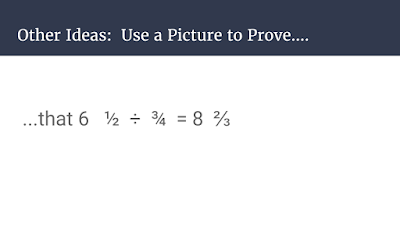
- Use a Picture to Prove....: I was inspired by Jo Boaler's book Mathematical Mindsets for this idea. One of the ways that she recommends opening up a task to make it richer is to have students make a visual to go with it. I think this could have some real power to get at the heart of some difficult topics...like fractions!

- Would You Rather?: The idea is to give a choice like, Would you rather have a 1 foot stack of quarters or a $20 bill? I got this idea from the Would You Rather Math website, which has lots of great examples. However it's also really easy to come up with your own!

- What's the Story (version 1): I was so excited when I found the Graphing Stories website. This is sooooo cool, and I think the practice graphing would be so helpful and spark tons of great discussion!
- What's the Story (version 2): Find a graph, and have the students write the action that matches the story. Seems like this would alternate well with What's the Story version 1....going back and forth between seeing the action and then making the graph, vs. seeing the graph and describing the action.

- What's the Story (version 3): Find some data, and have students draw the conclusion or decide on the caption from it. We are in a world with so much data, but how much practice do we give kids at deciding what the data is actually telling us?
If you would like a template for these routines, click here for a simple Google Slides that has a slide for each idea (including the ideas in my Beginning of Class Routine Revamp: Part 1 post!)
Friday, January 27, 2017
Kahoot or Quizlet Live or Quizizz
I'm a big fan of Kahoot. I love the instant feedback that I get. Plus, let's be honest...the kids love it! Recently, I've found two other things that are along the same lines as Kahoot, but each with their own advantages and disadvantages. Below, I'll outline what I liked and didn't like about three online class games: Kahoot, Quizizz and Quizlet Live.
Kahoot
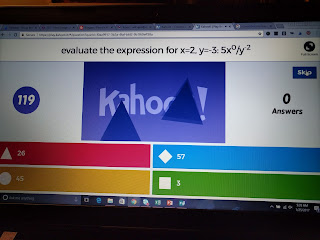
Like I said, I love Kahoot. I think it's a great teaching tool with formative assessment built in to what you're doing. When we play Kahoot in my classroom, I have 3 rules: 1. I have to be able to identify you from your nickname. 2. Move to a place where you can see. 3. It needs to be quiet between questions so I can talk.
Advantages
I think the best thing about Kahoot is that the whole class is answering every question at the same time, so you can teach in between each question as needed. You can give kids real time feedback about their answers, and often specific feedback about what mistake they made based on the wrong answers they chose. There is really nothing like this, especially if you'e got multiple questions of the same type in a row. As a teacher, you find out right away what is going wrong, and get to see if your explanation leads to improved results.
Student engagement is another great advantage. The kids love it and stay involved....can't beat that!
Disadvantages
There are a few things that I don't love about Kahoot. One is the general noise level. My class gets LOUD when we play Kahoot. Granted, it's because the kids are having fun, but still....that can get exhausting. But really the main disadvantage to Kahoot for me is time. My kids are always in a rush on a Kahoot to get the answer quickly so they can get more points. Kahoots are also difficult to do with problems that take much time to solve, as it's a game of speed.
Quizizz
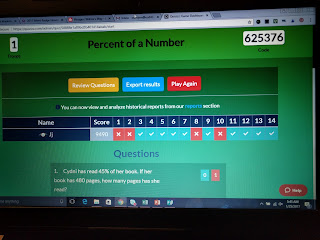
I just found out about Quizizz recently, and I've only had the chance to use it once. In some ways, it is very similar to Kahoot. You design a series of multiple choice questions for students to work through. However, unlike a Kahoot, where the whole class is playing each question at the same time, on a Quizizz students are self-paced.
Advantages
One cool thing I found about Quizizz is there is really easy ways to pull questions from different existing quizzes and merge them into one. I'm usually really picky about my questions, so I loved this feature! Noise level was another advantage. Kids are basically working on the questions by themselves, and as soon as they finish, the next question comes up.....so less down time for things to get loud. My students also liked not feeling rushed, and being able to work at their own pace. The kids also loved the fact that it shows you a meme after each question.


Disadvantages
The biggest disadvantage is missing out on the teaching time between questions, since not everyone is on the same question at the same time. My original Quizizz was 16 questions long, but that seemed way too long when I wasn't getting to give feedback between questions. I think if I were to use this again, I would make several small Quizizz games (2-4 questions each, probably) so then I could teach in between games as we reviewed the questions.
Quizlet Live
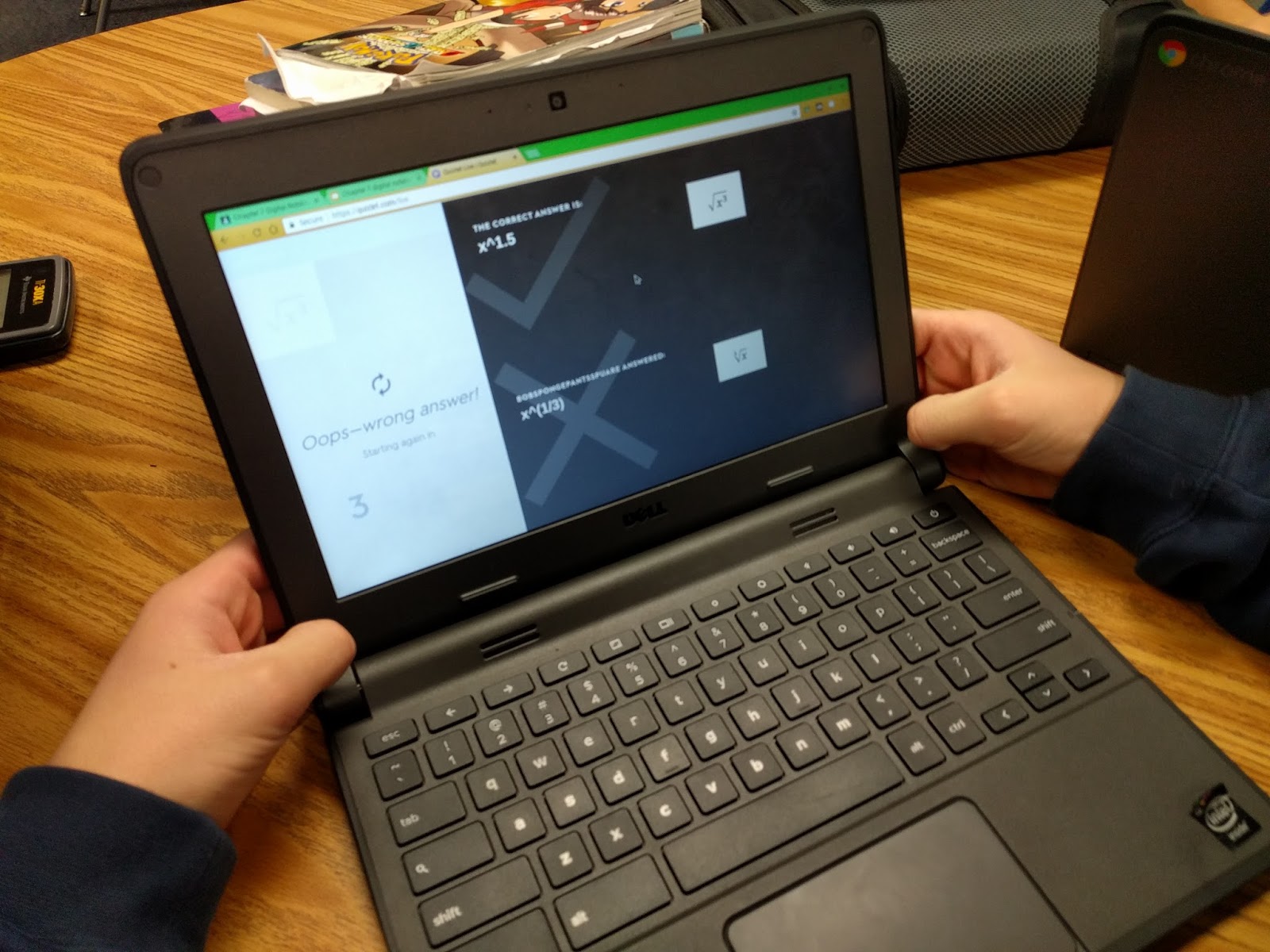
Quizlet Live has students working collaboratively on a set of questions, trying to match the answers. The way I understand it, each kid on the team gets the same question, and they all have several options to pick from....but only one of them has the right answer. So they have to work as a group, seeing between their whole team who has the correct answers. If they miss a question, they have to go all the way back to 0. It is a race to see which team finishes first.


Advantages
The biggest advantage is that my kids absolultely LOVE this....maybe even more than Kahoot. I also love that it adds the collaboration piece. It also really makes them think, not even knowing if any of the answers are correct. I like hearing the conversations my students have as they tell each other how they know that none of their answers are correct. Great conversations!

Disadvantages
This is a little embarrassing to admit, but one of my colleagues actually came and closed my door because my class was loud playing this. But I'm also kind of ok with that because they were learning and having so much fun too. The main disadvantage that I can think of is that to do quizlet live, you start out with a set of digital flashcards, and then it mixes the answers up. I suppose there might be some content that is hard to figure out how to make it work on a flashcard.

Kahoot
Like I said, I love Kahoot. I think it's a great teaching tool with formative assessment built in to what you're doing. When we play Kahoot in my classroom, I have 3 rules: 1. I have to be able to identify you from your nickname. 2. Move to a place where you can see. 3. It needs to be quiet between questions so I can talk.

Advantages
I think the best thing about Kahoot is that the whole class is answering every question at the same time, so you can teach in between each question as needed. You can give kids real time feedback about their answers, and often specific feedback about what mistake they made based on the wrong answers they chose. There is really nothing like this, especially if you'e got multiple questions of the same type in a row. As a teacher, you find out right away what is going wrong, and get to see if your explanation leads to improved results.
Student engagement is another great advantage. The kids love it and stay involved....can't beat that!
Disadvantages
There are a few things that I don't love about Kahoot. One is the general noise level. My class gets LOUD when we play Kahoot. Granted, it's because the kids are having fun, but still....that can get exhausting. But really the main disadvantage to Kahoot for me is time. My kids are always in a rush on a Kahoot to get the answer quickly so they can get more points. Kahoots are also difficult to do with problems that take much time to solve, as it's a game of speed.
Quizizz
I just found out about Quizizz recently, and I've only had the chance to use it once. In some ways, it is very similar to Kahoot. You design a series of multiple choice questions for students to work through. However, unlike a Kahoot, where the whole class is playing each question at the same time, on a Quizizz students are self-paced.

Advantages
One cool thing I found about Quizizz is there is really easy ways to pull questions from different existing quizzes and merge them into one. I'm usually really picky about my questions, so I loved this feature! Noise level was another advantage. Kids are basically working on the questions by themselves, and as soon as they finish, the next question comes up.....so less down time for things to get loud. My students also liked not feeling rushed, and being able to work at their own pace. The kids also loved the fact that it shows you a meme after each question.


Disadvantages
The biggest disadvantage is missing out on the teaching time between questions, since not everyone is on the same question at the same time. My original Quizizz was 16 questions long, but that seemed way too long when I wasn't getting to give feedback between questions. I think if I were to use this again, I would make several small Quizizz games (2-4 questions each, probably) so then I could teach in between games as we reviewed the questions.
Quizlet Live
Quizlet Live has students working collaboratively on a set of questions, trying to match the answers. The way I understand it, each kid on the team gets the same question, and they all have several options to pick from....but only one of them has the right answer. So they have to work as a group, seeing between their whole team who has the correct answers. If they miss a question, they have to go all the way back to 0. It is a race to see which team finishes first.


Advantages
The biggest advantage is that my kids absolultely LOVE this....maybe even more than Kahoot. I also love that it adds the collaboration piece. It also really makes them think, not even knowing if any of the answers are correct. I like hearing the conversations my students have as they tell each other how they know that none of their answers are correct. Great conversations!

Disadvantages
This is a little embarrassing to admit, but one of my colleagues actually came and closed my door because my class was loud playing this. But I'm also kind of ok with that because they were learning and having so much fun too. The main disadvantage that I can think of is that to do quizlet live, you start out with a set of digital flashcards, and then it mixes the answers up. I suppose there might be some content that is hard to figure out how to make it work on a flashcard.
Thursday, January 5, 2017
Have I Mentioned that I Love Desmos.....
I know I've said this before, but I really love Desmos. Today was one more example of that.
We are working on proportional relationships right now. We've been working on proportions and unit rates, but now it's time to move on to the next level of understanding. I'm trying to get students to see the connections between what we have learned about unit rates, and tables, graphs and equations.
The last couple of days I've been doing a series of partner activities about proportional relationships. The first activity was a breeze for the kids....find the unit rate. The first time around all of the kids had the same unit rate so they could check each other's work. Then we did another activity where they kids had different unit rates and had to compare and choose the better deal.
Then I had the kids graph the unit rates. I don't know why I'd never thought to do this before, but it was a great addition to this activity. On one graph, I had the kids graph both of their points (such as 12 books for $48 and 6 books for $24). Then they graph the unit rate (1 book for $4). It was a good chance for kids to make the connection about all of the points in a proportional relationship falling on a straight line.
With the second activity, I decided to save some time and show some graphs on Desmos instead of having kids graph them. It may have been a split second decision, but it worked out great! In one class, the Desmos graphs brought up a major misunderstanding that I wouldn't have realized otherwise....and Desmos made it so much easier to clear up. We were looking at this graph below, and my students though that the green line was a lower unit rate because the line was shorter...that was all they could see.


We are working on proportional relationships right now. We've been working on proportions and unit rates, but now it's time to move on to the next level of understanding. I'm trying to get students to see the connections between what we have learned about unit rates, and tables, graphs and equations.
The last couple of days I've been doing a series of partner activities about proportional relationships. The first activity was a breeze for the kids....find the unit rate. The first time around all of the kids had the same unit rate so they could check each other's work. Then we did another activity where they kids had different unit rates and had to compare and choose the better deal.
Then I had the kids graph the unit rates. I don't know why I'd never thought to do this before, but it was a great addition to this activity. On one graph, I had the kids graph both of their points (such as 12 books for $48 and 6 books for $24). Then they graph the unit rate (1 book for $4). It was a good chance for kids to make the connection about all of the points in a proportional relationship falling on a straight line.
With the second activity, I decided to save some time and show some graphs on Desmos instead of having kids graph them. It may have been a split second decision, but it worked out great! In one class, the Desmos graphs brought up a major misunderstanding that I wouldn't have realized otherwise....and Desmos made it so much easier to clear up. We were looking at this graph below, and my students though that the green line was a lower unit rate because the line was shorter...that was all they could see.

Luckily, with Desmos it was so easy to take care of this misconception. I quickly changed from the tables I was using to equations, as shown below.

As students watched me type the equation and saw the lines become longer, it was like I could see the light bulbs come on, and within a couple of questions they could explain not only which unit rate was better but what they had misunderstood. This was definitely a case of technology supporting understanding, in an immediate way that other tools couldn't have done...this is technology at its best. Simple, but awesome!
Monday, October 24, 2016
New Things I've Found This Year: EdPuzzle!
So, I am totally excited about EdPuzzle! It is such a cool tool, and really gives me one more way to make the best use of Chromebooks in the classroom.
EdPuzzle is a free site that lets you take videos (from YouTube, Khan Academy, etc....) and add stuff to them for your class.

The feature that I use the most is the ability to add questions in to the middle of the video. So as students watch, you can have them pause the video, and answer multiple choice or open ended questions about the video. If you give multiple choice questions, students even get feedback right away! To make that feature even better, you can type in different feedback depending on which answer students chose.
Another helpful feature of EdPuzzle is the ability to crop a video. So if you find a video that you like, but the intro is too long, or the concept gets too difficult, you can simply crop it out. The only thing I didn't like about this feature is that you can only crop off the beginning or the end....I don't think you can crop a section out of the middle.
EdPuzzle also has some cool audio features. You can add your own audio track to an existing video...basically narrating the entire thing! Or you have the ability to add an audio note, so that you can just add your own audio comment here or there within the video.
EdPuzzle has helped me so much to have better avenues for differentiation. It really allows me to feel like I can be in a couple of places at once. If I need to do reteaching over multiple skills, I can assign different EdPuzzles for the skills. My kids are engaged in something, and it frees me up to work with a small group without constantly being asked questions....AMAZING!!
Also, I signed up with Google, and it was so easy....it automatically created my classes for me. I literally think I just had to hit one button, and I was ready to go.
Next great thing about EdPuzzle....super information about your students. You have the ability to view the results by student, or by question.
 Here is the question view.
 Here is the whole class view.
When looking by student, you can see not only what they got right and wrong, but even which sections of the video the student watched multiple times.

I feel like EdPuzzle is just the tool I've needed to be more effective at differentiating. Often, I feel like I give my high kids a project and expect them to sort of figure it out on their own, while I work with my struggling students. I think that EdPuzzle will give me a way to do a better job with the kids that I won't be working with directly when I differentiate....like I really can be in two places at once!!
EdPuzzle is a free site that lets you take videos (from YouTube, Khan Academy, etc....) and add stuff to them for your class.

The feature that I use the most is the ability to add questions in to the middle of the video. So as students watch, you can have them pause the video, and answer multiple choice or open ended questions about the video. If you give multiple choice questions, students even get feedback right away! To make that feature even better, you can type in different feedback depending on which answer students chose.
Another helpful feature of EdPuzzle is the ability to crop a video. So if you find a video that you like, but the intro is too long, or the concept gets too difficult, you can simply crop it out. The only thing I didn't like about this feature is that you can only crop off the beginning or the end....I don't think you can crop a section out of the middle.
EdPuzzle also has some cool audio features. You can add your own audio track to an existing video...basically narrating the entire thing! Or you have the ability to add an audio note, so that you can just add your own audio comment here or there within the video.
EdPuzzle has helped me so much to have better avenues for differentiation. It really allows me to feel like I can be in a couple of places at once. If I need to do reteaching over multiple skills, I can assign different EdPuzzles for the skills. My kids are engaged in something, and it frees me up to work with a small group without constantly being asked questions....AMAZING!!
Also, I signed up with Google, and it was so easy....it automatically created my classes for me. I literally think I just had to hit one button, and I was ready to go.
Next great thing about EdPuzzle....super information about your students. You have the ability to view the results by student, or by question.
 Here is the question view.
 Here is the whole class view.
When looking by student, you can see not only what they got right and wrong, but even which sections of the video the student watched multiple times.

Look at all the information you can get about individual students....which questions right, which are wrong, which part they watched over, overall percent correct....great info!
I feel like EdPuzzle is just the tool I've needed to be more effective at differentiating. Often, I feel like I give my high kids a project and expect them to sort of figure it out on their own, while I work with my struggling students. I think that EdPuzzle will give me a way to do a better job with the kids that I won't be working with directly when I differentiate....like I really can be in two places at once!!
Sunday, August 28, 2016
Whole Class Participation Techniques
As this school year begins, I've been excited about how my classes have been taking shape so far. The kids are great, and the classroom is starting to feel like community. We're all starting to get to know each other a bit, and the kids are starting to understand my expectations.
I read a book over the summer about total participation techniques. I was really excited about this idea of getting every kid to answer questions, rather than just one kid. So as I started planning for building my classroom climate, this was one of my major considerations. I really wanted to utilize technology in a way to increase whole class participation whenever possible. These have been the things that I've been really pleased with in the first two weeks when it comes to increasing class participation.

1. Go Formative--I was introduced to GoFormative as one of the sessions at Space Camp this summer and thought it had potential. I tried it last week and loved it! I have used online quizzes on Google forms or quia, but what is different about Go Formative is that you are seeing data real-time (not just when kids finish). And not only can you see it real-time, you can send kids individual feedback, and they can make corrections based on the feedback you sent them. So here was a sample question:

 The student's initial response (which you can't see because he fixed it) was "agree", so I sent him the first message about "What do you do first?" This helped him realize the numbers weren't ordered, and he then changed his answer simple to "disagree". However, I also wanted students to justify their answer, so I sent the second message about "Why do you disagree?", leading to his final response.
I was impressed with how powerful these interactions were, and look forward to using this tool more in my classroom!
2. Desmos--I have written before about being a big fan of Desmos, but this week as I used it as a way to encourage whole class participation and formative assessment. We were doing one of my favorite lessons, one about students who are going into business together. My class has to analyze the business plans in terms of how much money each partner initially has, and how much they save each week. It's a great activity to teach distributive property, combining like terms, and the appearance of linear functions with positive/negative slope. I have always loved this lesson, but Desmos added something to it. We did most of the lesson on paper, and then I used just a few Desmos questions for real-time formative assessment.

I love being able to see everyone's response to a question on one screen. I also like being able to quickly show several different strategies for determining whose graph it was, while highlighting student work. It was fantastic!
3. Response Cards--This was my low-tech whole class participation technique...but still effective. We were having a debate about a question I had on the board, so I had students take out the "agree, disgree, or not sure" cards. I was able to get a quick feel for the mood of the class, as well as who might present arguments for each side to further our discussion. Quick, easy method for formative assessment! (You can get these response cards free at my Teachers Pay Teacher store, by the way)

4. Google Questions on classroom--I really enjoyed using the question function on Google Classroom. I played a video which showed a visual representation of mean, and then asked students to respond as a Google Question whether they thought the video represented mean, median or mode. Again, quick, easy formative assessment. Some classes got it right away, and that was great. Other classes were split down the middle at first, but after viewing the responses in the question, every class quickly concluded that is was mean
The whole interaction probably only took 10 minutes, and it was extremely effective!
5. Kahoot--This is certainly not a new one to me, as I used Kahoot frequently last year as well. This year, I'm trying to refine a few things about Kahoot. A couple of things I'm planning to incorporate in my Kahoots this year are spiraling review and trivia. I want to add just a couple of spiral review questions to every Kahoot, just to keep skills sharp. And the trivia is just for fun...the kids love knowing that every now and then I'll throw in something random just for fun!
I also love to use Kahoot to teach error analysis, and trying to get the kids to figure out what error had to be made to get the incorrect answers.
I read a book over the summer about total participation techniques. I was really excited about this idea of getting every kid to answer questions, rather than just one kid. So as I started planning for building my classroom climate, this was one of my major considerations. I really wanted to utilize technology in a way to increase whole class participation whenever possible. These have been the things that I've been really pleased with in the first two weeks when it comes to increasing class participation.

1. Go Formative--I was introduced to GoFormative as one of the sessions at Space Camp this summer and thought it had potential. I tried it last week and loved it! I have used online quizzes on Google forms or quia, but what is different about Go Formative is that you are seeing data real-time (not just when kids finish). And not only can you see it real-time, you can send kids individual feedback, and they can make corrections based on the feedback you sent them. So here was a sample question:
The answer I was wanting was that students disagreed, because the numbers were not in order.
Here is an example interaction between one student and myself.
I was impressed with how powerful these interactions were, and look forward to using this tool more in my classroom!
2. Desmos--I have written before about being a big fan of Desmos, but this week as I used it as a way to encourage whole class participation and formative assessment. We were doing one of my favorite lessons, one about students who are going into business together. My class has to analyze the business plans in terms of how much money each partner initially has, and how much they save each week. It's a great activity to teach distributive property, combining like terms, and the appearance of linear functions with positive/negative slope. I have always loved this lesson, but Desmos added something to it. We did most of the lesson on paper, and then I used just a few Desmos questions for real-time formative assessment.
I love being able to see everyone's response to a question on one screen. I also like being able to quickly show several different strategies for determining whose graph it was, while highlighting student work. It was fantastic!
3. Response Cards--This was my low-tech whole class participation technique...but still effective. We were having a debate about a question I had on the board, so I had students take out the "agree, disgree, or not sure" cards. I was able to get a quick feel for the mood of the class, as well as who might present arguments for each side to further our discussion. Quick, easy method for formative assessment! (You can get these response cards free at my Teachers Pay Teacher store, by the way)

4. Google Questions on classroom--I really enjoyed using the question function on Google Classroom. I played a video which showed a visual representation of mean, and then asked students to respond as a Google Question whether they thought the video represented mean, median or mode. Again, quick, easy formative assessment. Some classes got it right away, and that was great. Other classes were split down the middle at first, but after viewing the responses in the question, every class quickly concluded that is was mean
The whole interaction probably only took 10 minutes, and it was extremely effective!
5. Kahoot--This is certainly not a new one to me, as I used Kahoot frequently last year as well. This year, I'm trying to refine a few things about Kahoot. A couple of things I'm planning to incorporate in my Kahoots this year are spiraling review and trivia. I want to add just a couple of spiral review questions to every Kahoot, just to keep skills sharp. And the trivia is just for fun...the kids love knowing that every now and then I'll throw in something random just for fun!
I also love to use Kahoot to teach error analysis, and trying to get the kids to figure out what error had to be made to get the incorrect answers.
Subscribe to:
Posts (Atom)